
If you’re trying to figure out how to fix slow internet, start by finding out where the slowdown actually begins. In most cases, the problem comes from your device, Wi-Fi, router or modem, or your ISP, so this guide works through each one in order.
Most people skip the diagnosis and restart things at random. That works often enough to feel like a method, but it wastes an afternoon when the real cause is a congested neighborhood node or a forgotten VPN.
- What Causes Slow Internet?
- Common Slow Internet Problems and Their Solutions
- Find Out Where the Slowdown Is
- Is It Speed, or Is It Latency?
- Quick Checks Worth Doing First
- Fixing Slow Wi-Fi
- Find Out What Is Using Your Bandwidth
- Why Is My Internet Slow at Night?
- Device-Specific Fixes
- Software and Configuration
- What Does Not Fix Slow Internet
- Temporary Workarounds When You Need Internet Now
- When to Escalate to Your ISP
- Frequently Asked Questions
- Conclusion
What Causes Slow Internet?
If you’re trying to understand how to fix slow internet, start with the most common causes: weak Wi-Fi, ISP outages or peak-hour congestion, background downloads and cloud syncing, too many connected devices, aging routers, damaged cables, and slow DNS.
Two less obvious causes matter more than their reputation suggests. High latency makes a fast connection feel slow, and a VPN or privacy feature running in the background can halve your throughput.
Common Slow Internet Problems and Their Solutions
| Symptom | Most likely cause | Where to start |
|---|---|---|
| Slow on every device | ISP or modem | Check outages, test at the modem |
| Slow on one device only | That device | Device-specific fixes |
| Fast wired, slow Wi-Fi | Router or interference | Wi-Fi section |
| Good speed test, still feels slow | Latency or bufferbloat | Speed vs. latency section |
| Slow only in the evening | Neighborhood congestion | Slow at night section |
| Websites slow, downloads fine | DNS | Change your DNS |
| Downloads slow, everything else fine | Background bandwidth use | Find what is using bandwidth |
Find Out Where the Slowdown Is
Test at three points and compare the numbers. The point where the speed drops is the point that is broken.
First, know what you pay for. Check your bill or ISP account for the advertised plan speed. Without this number, no test result means anything.
Second, test at the modem. Disconnect the router, plug a computer directly into the modem or ONT by Ethernet, and run a speed test. If this number is far below your plan, the problem is your ISP or the line into the building, and nothing indoors will fix it. Reconnect the router afterward, since running without one leaves your computer exposed.
Third, test at the router. Test twice: once wired to the router, once on Wi-Fi. A wired result close to the modem result means the router is fine, while a large gap between wired and Wi-Fi points at Wi-Fi rather than your connection.
Fourth, test a second device. If one laptop is slow and everything else is fast, stop troubleshooting the network and go to the device-specific fixes below.
Run each test a few times across different hours. A single reading tells you very little.
Is It Speed, or Is It Latency?
If your speed test matches your plan but everything still feels sluggish, you have a latency problem, and no plan upgrade will fix it.
Bandwidth is how much data can move at once. Latency is how long a single request takes to complete its round trip, measured in milliseconds. Jitter is how much that delay varies.
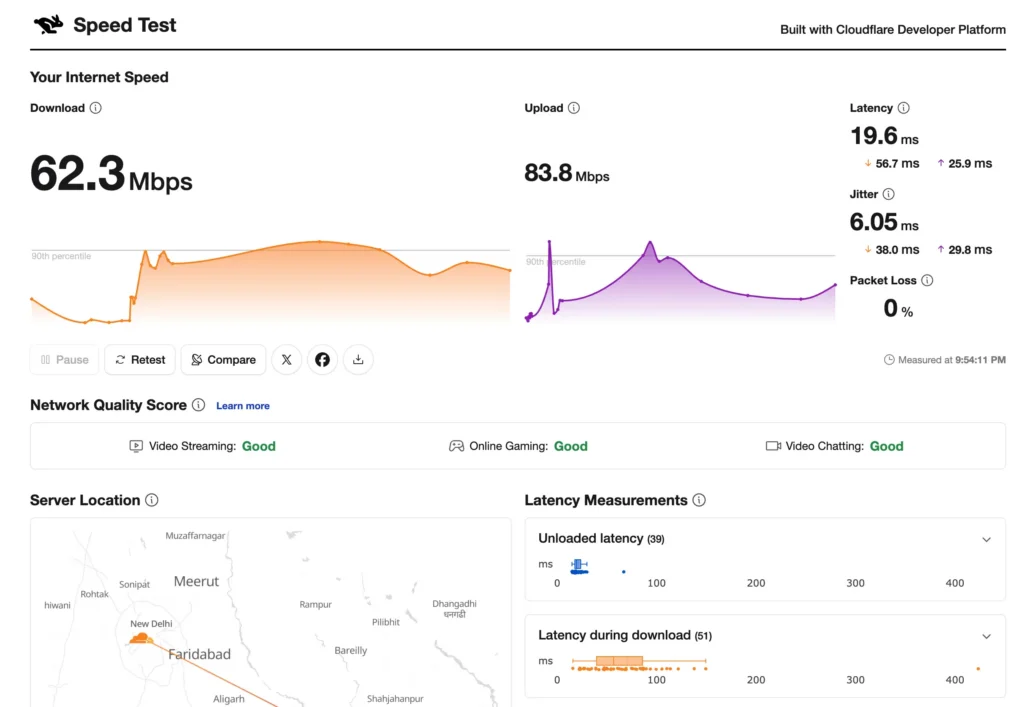
Cloudflare, which runs one of the major speed test tools, puts the consequence plainly: latency, jitter and packet loss can degrade experience enough that a higher-speed connection performs worse than a lower-speed one. Video calls stutter and games lag while the download number looks perfect.
Run a test at speed.cloudflare.com, which reports latency and jitter alongside download and upload. Under about 50 ms is comfortable for most uses. Above 150 ms, video calls and gaming suffer regardless of bandwidth.
Bufferbloat
Bufferbloat is the version of this problem you can actually fix. It happens when a large download fills your router’s buffers and every other request queues behind it.
The symptom is distinctive: your connection is fine until someone starts a big download or backup, then everything else collapses even though bandwidth remains.
The Cloudflare test grades this by comparing idle latency against latency under load. If loaded latency is dramatically higher, enable Smart Queue Management or QoS in your router settings, often labeled adaptive QoS or SQM.
Quick Checks Worth Doing First
Restart the Right Way, in the Right Order
Unplug both the modem or ONT and the router. Wait 60 seconds, then reconnect the modem first and let it fully sync before powering on the router, since the router needs a working upstream connection to configure itself. A full reboot takes up to 20 minutes on some equipment, so do not judge the result after two.
Check for an Outage Before Anything Else
Check your ISP’s status page or app, then search for recent outage reports in your area. A surprising share of complaints are ISP-side events that resolve on their own, and checking first saves an hour on a problem you cannot fix.
Check Your Cables and Connectors
Cables fail more often than people expect, and a damaged one degrades a connection rather than killing it, which is what makes it hard to spot.
Push each Ethernet cable in until it clicks. If it does not click, the plastic clip is worn and the cable should be replaced. Check the full run for kinks, crush points, and pet chew marks.
On cable internet, confirm the coaxial connector is hand-tight at the modem and at the wall. On fiber, avoid bending the cable sharply near the ONT.
Fixing Slow Wi-Fi
Move the Router
Routers belong in the open, central, and elevated. Cabinets, floor-level corners, and the space behind a television all cost you signal, as do microwaves, cordless phones, and large metal surfaces nearby. Moving a router a few feet often changes more than any setting.
Put Devices on the Right Band
Modern routers broadcast on 2.4 GHz and 5 GHz, and Wi-Fi 6E and Wi-Fi 7 routers add 6 GHz. Using the wrong one is a common self-inflicted slowdown.
The 2.4 GHz band reaches further through walls but is slower and shares space with almost every other wireless device nearby. The 5 GHz band is considerably faster over shorter distances. The 6 GHz band is faster still and largely empty, with the shortest range of the three.
Put laptops, phones, and streaming devices on 5 GHz or 6 GHz, and leave smart plugs, sensors, and distant devices on 2.4 GHz. If your router publishes one combined network name and keeps choosing wrong, split the bands into separate names.
Check for Wi-Fi Channel Congestion
Your Wi-Fi can also slow down when nearby networks are competing on the same channel, especially on the crowded 2.4 GHz band. Many modern routers select a channel automatically, but that choice is not always ideal in apartments or densely populated areas.
Check your router’s Wi-Fi settings for automatic channel selection or a channel-optimization feature. If interference remains high, choosing a less congested channel can improve stability and performance. Avoid changing channels at random; compare performance before and after the change.
Fill In Dead Zones
If speed is fine near the router and poor in specific rooms, you have coverage gaps rather than a slow connection. Walk around with a phone and watch the signal indicator to map them.
A mesh system suits a house with several weak areas, since devices hand off between nodes as you move. A single extender covers one problem room but typically halves throughput on the extended segment.
Know When the Router Is the Bottleneck
Replace the router if it only supports Wi-Fi 4, is more than five years old, disconnects frequently, or came free with a plan you have since upgraded. Wi-Fi 6 and Wi-Fi 7 improve throughput, latency, and the ability to handle many devices at once.
Find Out What Is Using Your Bandwidth
Something on your network may be quietly consuming the connection. This is a common cause of a link that is fast some hours and unusable others.
Unused devices
Open your router’s admin interface and look at the connected device list. Smart TVs, security cameras, gaming consoles, tablets, smart-home devices, and other equipment all use bandwidth for updates and background services even when nobody is using them. Disconnect unused devices while troubleshooting.
Unrecognized devices
Also check the router’s connected-device list for anything you do not recognize. An unfamiliar device may be consuming bandwidth without your knowledge. If you cannot identify it, change your Wi-Fi password and reconnect only the devices you trust.
After disconnecting unnecessary devices, run the same speed test again. A noticeable improvement tells you that bandwidth demand inside your network was contributing to the slowdown.
Cloud services
Then check your own machine. Cloud sync clients such as Google Drive, OneDrive, Dropbox, and iCloud upload in the background, and pausing them during a speed test confirms whether they are the cause. Game launchers including Steam, Epic, and Xbox download large updates without announcing it.
If your router supports QoS, use it to prioritize video calls over background transfers.
Why Is My Internet Slow at Night?
If speeds are good all day and collapse in the evening, the cause is almost certainly congestion on your ISP’s network rather than anything in your home. The FCC defines the network busy hour as weeknights between 7 and 11 pm.
Cable internet is affected most because of how it is built. Somewhere between 500 and 2,000 homes share the capacity of a single neighborhood node, so when everyone streams at once, that capacity is divided among them. Fiber-to-the-home is largely immune, since each property gets its own dedicated line to the splitter.
How to Confirm It
Run a wired speed test at around 10 am and again at 9 pm on three consecutive weekdays, recording every result with its timestamp. If evening speeds sit consistently more than 20% below daytime speeds on a wired connection, your node is congested, and that is an ISP infrastructure issue rather than a home network one.
What Actually Helps
Schedule large downloads, backups, and system updates for off-peak hours. This is the only fix fully within your control.
When you call your ISP, state specifically that wired speeds drop during peak hours and ask whether your neighborhood node is congested. That framing, with a week of timestamped results, moves the ticket past the standard script. Upgrading your plan will not help if the node itself is saturated, since the limit sits on their infrastructure rather than your subscription.
Device-Specific Fixes
If the slowdown affects only one device, the cause is on that device. Each platform has a setting that commonly gets blamed on the internet connection.
Windows 11
Delivery Optimization can download Windows updates, Microsoft Store apps, and other Microsoft content in the background.
Go to Settings > Windows Update > Advanced options > Delivery Optimization > Activity monitor to see recent download and upload activity.
If it is using significant bandwidth, adjust its bandwidth limits or change whether your PC shares updates with other devices. Windows 10 users can find similar controls, although Microsoft ended standard Windows 10 support in October 2025.
iPhone and iPad
Check Low Data Mode if downloads, backups, streaming, or background updates seem unusually limited.
For Wi-Fi, go to Settings > Wi-Fi, tap the information button beside the connected network, and check Low Data Mode.
If you use iCloud+, Private Relay is under Settings > [your name] > iCloud > Private Relay.
Private Relay can make some speed-test results appear lower, so compare tests with and without it only as a diagnostic step rather than assuming it is slowing your entire connection.
Low Data Mode is set per Wi-Fi network and easy to forget: Apple documents that it turns off Background App Refresh, lowers streaming quality, and pauses automatic downloads.
Android
If the problem affects mobile data, check Settings > Network & internet > Data Saver on Pixel and many stock-Android devices.
Data Saver restricts background mobile-data use, so apps may update or sync differently while it is enabled.
Also check Battery Saver if apps or network activity seem delayed, since it can limit background activity and some network connections.
Menu names vary by phone manufacturer e.g. for OnePlus Settings > Mobile network > Data usage > Data savings.
Mac
Hold Option and click the Wi-Fi menu to open Wireless Diagnostics, which reports the security, channel, and signal quality in use.
If the connection itself is behaving badly, choose Open Wireless Diagnostics from that same menu and follow Apple’s troubleshooting recommendations.
Software and Configuration
Check Whether a VPN Is Slowing You Down
Disconnect your VPN and run another speed test. A significant improvement means the VPN server is the bottleneck, and switching to a closer server usually solves it.
Use the Same Test to Detect Throttling
Now run it the other way. Test normally, then again with the VPN connected: if speeds are noticeably better with it on, your ISP may be throttling specific traffic, since the VPN hides that traffic from them. Our guide to bandwidth throttling covers how to confirm it.
Scan for Malware
Malware, cryptominers, and unwanted background software consume bandwidth and processing capacity alike. Run a full scan with a reputable antivirus tool.
Update Network Drivers and Router Firmware
Outdated Wi-Fi and Ethernet drivers cause instability and reduced throughput, so update through Windows Update or your manufacturer’s support page.
Router firmware is the step almost everyone skips. Log in to your router’s interface or app and check, since firmware releases regularly fix performance and stability problems.
Try a Different DNS Server
Changing DNS can speed up how quickly websites begin loading if your ISP’s resolvers are slow. It will not increase your download speed.
The distinction matters. If pages hesitate before starting but large files download at full speed, DNS is a reasonable suspect. Cloudflare’s 1.1.1.1 and Google’s 8.8.8.8 are the common alternatives.
What Does Not Fix Slow Internet
Several widely repeated tips do nothing for connection speed.
Clearing your browser cache fixes pages that render incorrectly or show stale content. It does not affect connection speed, and it briefly makes sites load slower by discarding files your browser had already stored.
Upgrading your SSD or freeing storage does not change internet speed. Very low free space can make downloads feel sluggish, but that is device performance rather than connectivity.
Buying a faster plan does not help when the bottleneck is Wi-Fi, your router, latency, or a congested node. Diagnose first.
Temporary Workarounds When You Need Internet Now
Sometimes the underlying problem cannot be fixed immediately, especially during an ISP outage or neighborhood congestion. These workarounds will not repair the connection, but they can make a slow connection more usable until the main problem is resolved.
- Use a mobile hotspot as a temporary backup if your cellular connection is faster and your data plan allows it.
- Pause large downloads, cloud backups, and software updates while you are doing something more important.
- Lower streaming quality temporarily to reduce bandwidth demand.
- Disable unnecessary autoplay video or other media on bandwidth-heavy pages.
- Use Reader Mode or lightweight versions of websites when available if pages are struggling to load.
Treat these as short-term measures. Once the connection is stable again, return to the troubleshooting steps above to identify and fix the actual bottleneck.
When to Escalate to Your ISP
Contact your provider once you have confirmed at the modem that arriving speed is below your plan, or established a peak-hour pattern. Bring timestamped results.
Ask whether there is a known fault on your line, whether your node is congested, whether your equipment suits your plan tier, and whether a data cap slows you after a monthly threshold. Months of below-plan speeds also make a reasonable case for a credit.
Switching providers is worth considering when chronic congestion goes unresolved, or when fiber becomes available and you are still on cable or DSL.
Frequently Asked Questions
Why is my internet slow even though I pay for high-speed internet?
Your plan speed is what arrives at your home, not what reaches your device. Wi-Fi signal loss, an outdated router, background downloads, and peak-hour congestion all reduce it along the way. Test wired at the modem to see what you actually receive.
How do I fix a slow internet connection quickly?
Restart your modem and router in that order, check for an ISP outage, and pause cloud syncing and background downloads. These three take about five minutes and resolve a large share of cases.
Why does my internet slow down at night?
Between 7 and 11 pm, more people in your area are online at once. Cable connections share neighborhood capacity, so speeds drop when demand peaks. Compare a wired midday test against an evening test for three days to confirm it.
Why is Wi-Fi slower than Ethernet?
Wi-Fi loses signal to walls, distance, and interference from other networks and devices, and it shares airtime between everything connected. Ethernet gives each device a dedicated path.
Is high ping the same as slow internet?
No, and confusing the two leads people to buy bandwidth they do not need. Ping measures delay, bandwidth measures capacity. A connection can have excellent bandwidth and poor ping, which is why video calls stutter on plans that test perfectly.
Conclusion
The key to understanding how to fix slow internet is to diagnose the connection before changing anything. Test at the modem, then the router, Wi-Fi, and individual device, and fix the point where performance drops.
If your speed test matches your plan and things still feel slow, look at latency and bufferbloat rather than bandwidth. If speeds fall only in the evening, take a week of timestamped results to your ISP.
