
Do you feel like someone is listening to your phone conversations, forwarding your calls, tracking your location, or accessing your private information?
That concern may come from an unfamiliar call-forwarding number, unusual account activity, an unknown app, rapid battery drain, or a message claiming that your phone is being monitored. You may therefore be searching for a code to check if phone is hacked or a code to check if a phone is tapped.
Dial codes can reveal useful information, but you must understand what the results mean before assuming the worst.
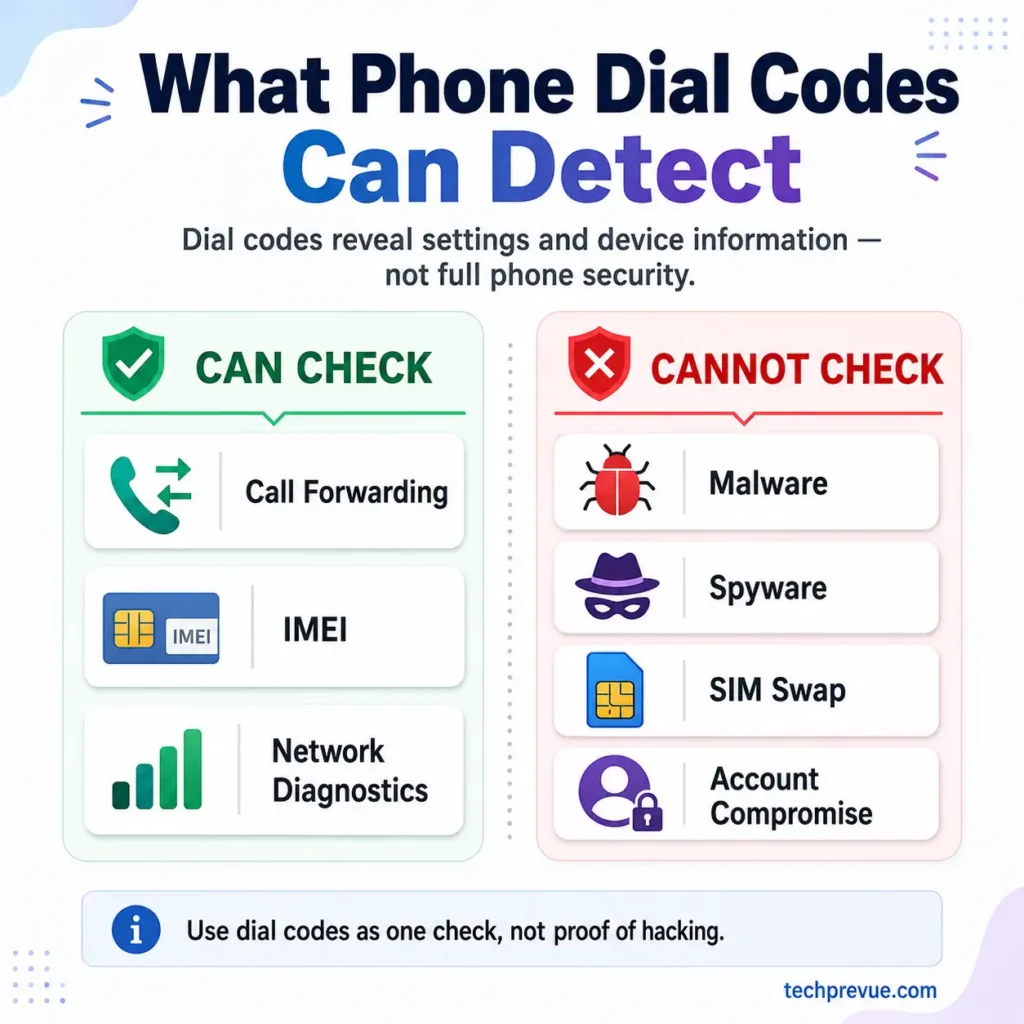
Quick answer: No universal dial code can confirm that your phone is hacked or tapped. Codes such as
*#21#,*#61#,*#62#, and*#67#can check specific call-forwarding settings on supported mobile networks. They cannot detect spyware, malicious apps, SIM swapping, stolen passwords, camera access, or unauthorized access to your Google, Apple, WhatsApp, email, or banking accounts.
If you notice multiple warning signs beyond call forwarding, read our detailed guide on the signs that your phone may be hacked.
What Is a Code to Check If Phone Is Hacked?
Many codes promoted online as “secret hacking codes” are actually MMI, USSD, supplementary-service, device-information, or manufacturer diagnostic codes.
USSD stands for Unstructured Supplementary Service Data. It allows your phone to communicate with services provided by your mobile network.
MMI stands for Man-Machine Interface. MMI codes can control network services, display device information, or open diagnostic menus.
These codes may help you:
- Check whether call forwarding is enabled
- See the number receiving forwarded calls
- Display your phone’s IMEI number
- Open certain cellular or diagnostic menus
- Disable supported call-forwarding services
- Identify a setting that you did not knowingly activate
However, these codes do not perform a complete malware or spyware scan.
Quick-Reference Codes to Check If a Phone Is Tapped or Forwarded
| Dial code | What the code may show | Does it confirm hacking? | Important note |
|---|---|---|---|
*#21# | Unconditional call-forwarding status | No | Calls may be forwarded directly without ringing |
*#61# | Forwarding when you do not answer | No | The number shown may be your voicemail service |
*#62# | Forwarding when your phone is unreachable | No | Commonly used for carrier voicemail |
*#67# | Forwarding when your line is busy | No | Does not detect spyware or call recording |
*#004# | All conditional forwarding where supported | No | Support varies by carrier |
*#002# | All forwarding services where supported | No | May not work on every network |
##002# | Disables supported call-forwarding services | No | May also disable legitimate voicemail forwarding |
*#06# | Your phone’s IMEI number | No | Useful for device identification, not malware detection |
*3001#12345#* | iPhone cellular Field Test Mode | No | Shows network data, not phone-tapping evidence |
The commonly used GSM supplementary-service codes 21, 61, 62, and 67 correspond to unconditional, no-reply, unreachable, and busy call-forwarding conditions. Their behavior depends on your carrier, phone, SIM, and network technology. The broader code structure is described in the ETSI supplementary-service code register.
What a Phone-Hacking Code Can and Cannot Detect
A dial code can be useful when your concern is unauthorized call forwarding. It cannot investigate every way a phone or account may be compromised.
| Security concern | Can a dial code detect it? | Better way to check |
|---|---|---|
| Unauthorized call forwarding | Sometimes | Check codes, phone settings, and carrier account |
| Malware or a malicious Android app | No | Run Play Protect and inspect installed apps |
| Spyware or stalkerware | No | Review apps, permissions, accessibility access, and device profiles |
| SIM swapping | No | Contact your wireless carrier immediately |
| Hacked Google Account | No | Review signed-in devices and security activity |
| Hacked Apple Account | No | Review connected devices and use Safety Check |
| Hacked WhatsApp account | No | Check Linked Devices and two-step verification |
| Unauthorized location sharing | No | Review Google or Apple location-sharing settings |
| Camera or microphone access | No | Review app permissions and privacy indicators |
| Lost or stolen phone | No | Use Find Hub, Find My, or your carrier |
| Lawful network interception | No | A consumer dial code cannot reliably confirm it |
A result should therefore be treated as one piece of evidence—not a final diagnosis.
Do Phone Dial Codes Work on Every US Carrier?
No. Call-forwarding commands vary by wireless carrier, device, network technology, and account configuration.
Some GSM-based codes may work on T-Mobile and certain compatible devices, while Verizon and AT&T may use different commands or require you to manage forwarding through the Phone app or device settings.
| US carrier | Common forwarding method | Important note |
|---|---|---|
| T-Mobile | GSM-style forwarding commands and device settings | Supports separate commands for unconditional, unanswered, unreachable, and busy forwarding |
| Verizon | *72 to activate and *73 to deactivate immediate forwarding | *71 may be used for conditional forwarding |
| AT&T | Phone settings or carrier-supported commands | AT&T documents #21# for turning off forwarding on supported devices |
| Other US carriers and MVNOs | Varies by underlying network | Contact the carrier before changing unfamiliar settings |
A code that returns an error may simply be unsupported by your carrier. It does not mean that your phone is hacked.
Similarly, a code that displays a forwarding number does not prove that someone tapped your phone. The number may belong to your carrier’s voicemail system.
US Call-Forwarding Codes and Carrier Differences
T-Mobile Call-Forwarding Commands
T-Mobile documents separate call-forwarding commands for several conditions.
These include:
- Unconditional forwarding
- Forwarding when you do not answer
- Forwarding when your phone is unreachable
- Forwarding when your line is busy
T-Mobile also documents ##21#, ##61#, ##62#, and ##67# as deactivation commands for the corresponding forwarding conditions.
The exact status-check commands may still depend on your phone and network configuration.
Verizon Call-Forwarding Codes
Verizon commonly uses:
*72followed by a ten-digit US phone number to activate immediate call forwarding*73to turn off immediate call forwarding*71followed by a number to enable conditional forwarding for unanswered or busy calls
These commands differ from the GSM-style codes commonly listed on international websites.
AT&T Call-Forwarding Settings
AT&T generally directs users to manage wireless call forwarding through their phone’s call settings or device-specific instructions.
AT&T also documents #21# as a command that can turn off call forwarding on supported phones.
Because AT&T device menus vary, readers should use AT&T’s device-support instructions or contact customer support when the setting is unclear.
US carrier warning: Never assume that one call-forwarding code works on every American carrier. Check your wireless provider’s official instructions before activating or disabling forwarding.
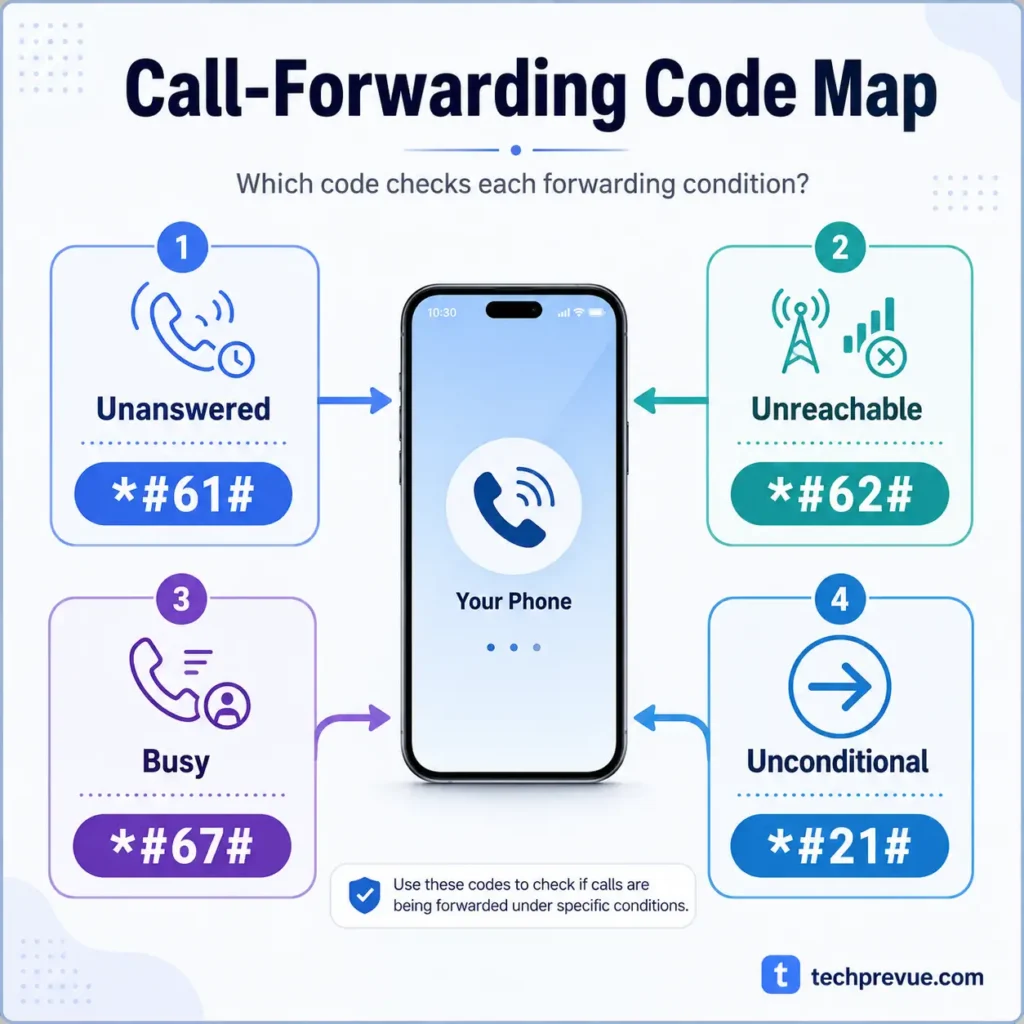
Conditional Call-Forwarding Codes to Check If a Phone Is Tapped
Conditional call forwarding redirects calls only when a specific condition applies. For example, a call may be forwarded when you do not answer, your phone is unreachable, or your line is already busy.
These services are often configured automatically for voicemail. Finding an active forwarding number does not automatically mean that a hacker controls your phone.
*#61# Code to Check Forwarding When You Do Not Answer
Dial *#61# to check whether calls may be forwarded when you do not answer them.
The result may show:
- Whether no-reply forwarding is enabled
- The destination number
- A forwarding delay on some networks
- The service types supported by your carrier
Your wireless carrier may use this setting to route unanswered calls to voicemail. If the displayed destination is unfamiliar, ask your carrier whether it belongs to its voicemail platform before changing the setting.
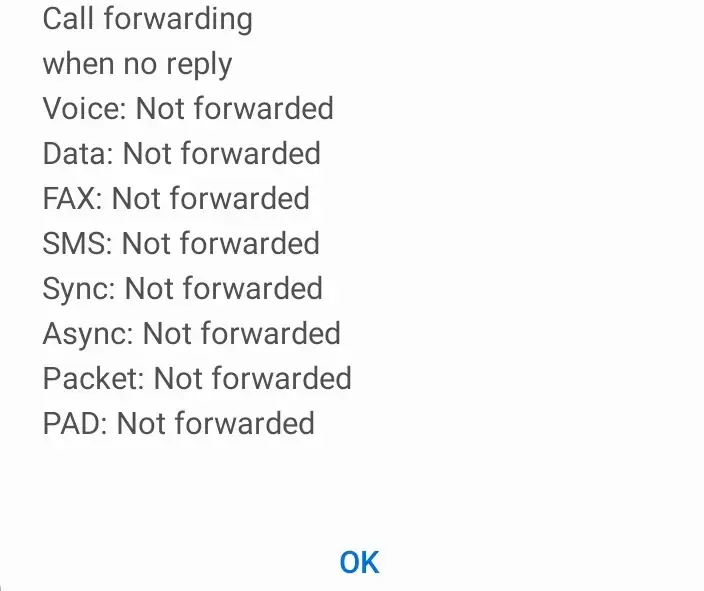
If you see a number you do not recognize, take a screenshot and ask your carrier whether it belongs to its voicemail system.
You may be able to deactivate no-reply forwarding with ##61#, but confirm the number first. Disabling it may stop unanswered calls from reaching voicemail.
*#62# Code to Check Forwarding When Your Phone Is Unreachable
Dial *#62# to check whether calls are forwarded when your phone is switched off, outside network coverage, in airplane mode, or otherwise unreachable.
This is another common voicemail condition. Your carrier may forward calls so that callers can leave a message while your phone has no signal.
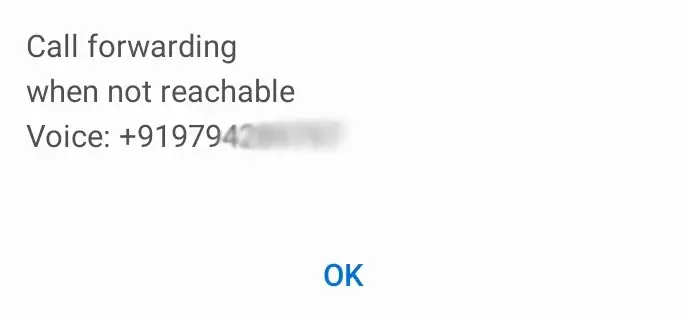
An unfamiliar number deserves investigation, but it does not prove that your phone has been tapped.
You may be able to remove this forwarding condition with ##62#. Before doing so, verify whether the displayed number belongs to your carrier.
*#67# Code to Check Forwarding When Your Line Is Busy
Dial *#67# to check whether calls are forwarded when your line is busy.
Depending on your carrier, this condition may apply when:
- You are already on another call
- You reject an incoming call
- Call waiting is unavailable
- Your carrier sends the call to voicemail
The result does not show whether someone is recording your calls or reading your messages. It only reports the forwarding status supported by the network.
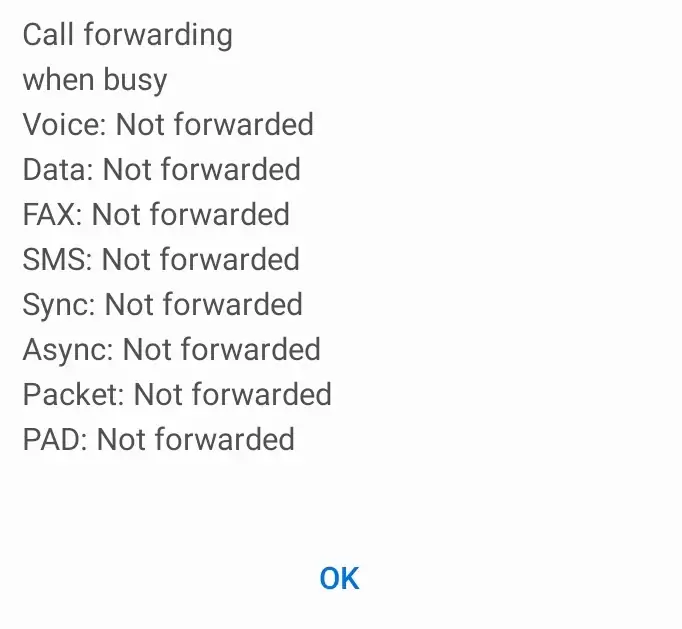
You may be able to deactivate busy-line forwarding with ##67#.
*#004# Code to Check All Conditional Call Forwarding
On networks that support it, *#004# may show the combined status of conditional call forwarding.
This can include forwarding when:
- You do not answer
- Your phone is unreachable
- Your line is busy
The code does not normally check unconditional forwarding, which uses service code 21.
You may be able to deactivate all conditional forwarding with ##004#. Carrier support varies, so an invalid MMI or connection error does not indicate hacking.
*#21# Code to Check Unconditional Call Forwarding
Unconditional call forwarding sends incoming calls directly to another number, regardless of whether your phone is available.
Dial *#21# to check its status on supported networks.
When unconditional forwarding is active:
- Your phone may not ring
- Calls may go directly to another number
- The destination may be a number you configured
- The destination may be a legitimate business or carrier service
- An unknown destination may require carrier investigation
The code does not detect spyware, account access, location tracking, or microphone monitoring.
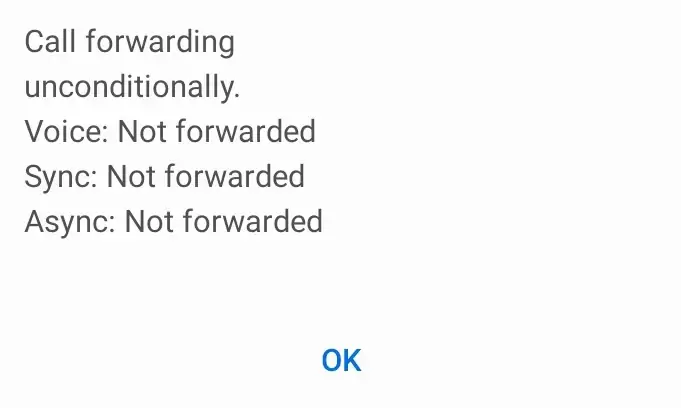
You may be able to deactivate unconditional forwarding with ##21#.
*#002# and ##002# Codes for All Call Forwarding
On some GSM networks, *#002# may query the status of all call-forwarding services.
The more widely recognized ##002# command attempts to deactivate all supported call forwarding, including conditional and unconditional forwarding.
Warning: Do not automatically use
##002#merely because a number appears in a forwarding result. The number may belong to your carrier’s voicemail system, and disabling all forwarding may prevent voicemail from working correctly.
Use this command when:
- Your carrier confirms the forwarding is unauthorized
- You accidentally activated forwarding
- A scammer instructed you to forward calls
- You understand that voicemail services may be affected
After deactivating forwarding, call your number from another phone under different conditions to confirm that calls behave normally.
What to Do If You Find an Unknown Forwarding Number in the US
Do not panic or immediately call the displayed number. Wireless carriers often use separate numbers for voicemail services, and these numbers may look unfamiliar because they are not saved in your contacts.
An unfamiliar number does not automatically mean that your phone is tapped.
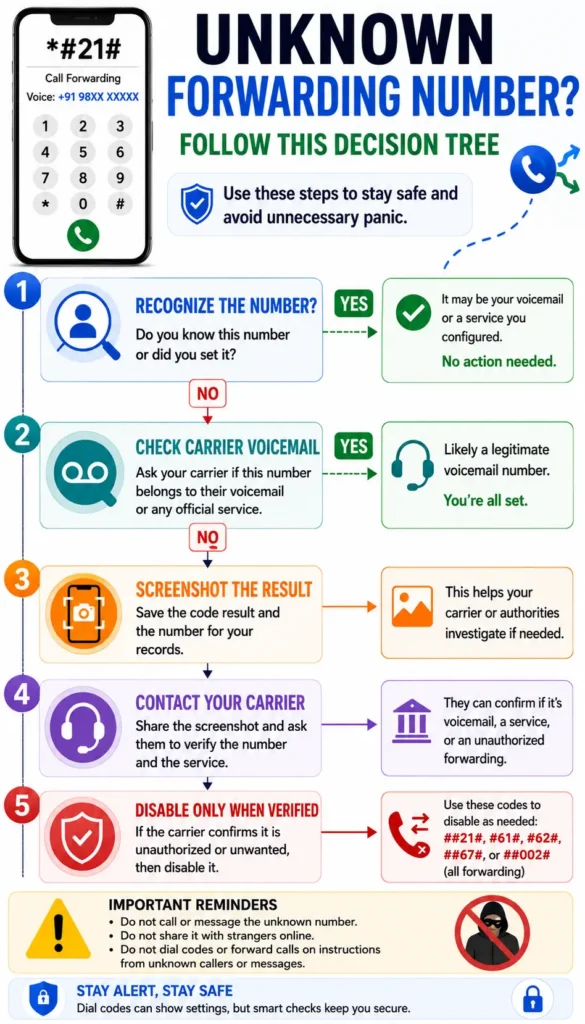
| Result shown | What it may mean | What you should do |
|---|---|---|
| Forwarding disabled | That forwarding condition is inactive | Continue other security checks if suspicious activity remains |
| A known voicemail number | Normal wireless-carrier voicemail routing | No action unless voicemail is not working correctly |
| A number you configured | Expected personal or business forwarding | Remove it only when you no longer need it |
| An unfamiliar number | An unknown configuration or carrier service | Save a screenshot and contact your wireless carrier |
| Invalid MMI code | Your carrier, SIM, phone, or network may not support the code | Check forwarding through the Phone app or carrier account |
| Connection problem | A temporary network or service issue | Retry later or contact your carrier |
| No result appears | The code may not be supported | Use Android, iPhone, or carrier-account settings |
Follow these steps before changing any forwarding setting:
- Take a screenshot of the code result and forwarding number.
- Check whether the number appears in your carrier’s voicemail settings.
- Sign in to your wireless account and review call-forwarding features.
- Contact your carrier using the number listed on its official website, app, or billing statement.
- Ask whether the displayed number belongs to voicemail or another carrier service.
- Disable forwarding only after the carrier confirms that it is unauthorized or unwanted.
- Add or update your wireless-account PIN to help prevent unauthorized changes.
An unknown forwarding number becomes more concerning when:
- Your carrier confirms that it is not a voicemail or service number
- You never enabled call forwarding
- Calls are no longer reaching your phone
- Banking or account-verification calls are missing
- Someone recently asked you to dial a code containing another phone number
- Your carrier account shows unauthorized changes
- You also notice account takeovers, SIM-service problems, or an unexpected loss of cellular service
Take screenshots before changing anything. The evidence may help your wireless carrier, bank, law enforcement, or fraud investigator understand what happened.
Never call an unfamiliar forwarding number solely to confront whoever may control it. Verify the number through your carrier first.
Call-Forwarding Scams and Codes Shared by Unknown Callers
Call forwarding is a legitimate wireless feature, but scammers may misuse it to redirect calls to a number they control.
A scammer may pretend to be:
- A courier or delivery agent
- Bank support
- Wireless carrier support
- A government employee
- A job recruiter
- An online marketplace buyer
- A customer-service representative
The scammer may tell you to dial a code beginning with 21, 61, 62, or 67, followed by a phone number. That command may activate call forwarding to a number controlled by the scammer.
Never dial a complete forwarding command given by an unknown caller, SMS, WhatsApp message, or email.
A status code such as *#21# checks a setting. A command containing another person’s phone number may change the setting.
If you followed suspicious instructions:
- Take screenshots of your call-forwarding status.
- Contact your wireless carrier.
- Disable unauthorized forwarding after carrier verification.
- Secure your email, banking, Google, Apple, and messaging accounts.
- Inform your bank if one-time passcodes or verification calls may have been intercepted.
- Review WhatsApp and other apps for unknown linked devices.
- Report financial fraud or identity theft immediately.
If a caller instructed you to dial a forwarding command, contact your wireless carrier immediately and secure your important accounts.
Other Codes Commonly Used to Check If Phone Is Hacked
Some dial codes provide device or cellular information. They may support a broader investigation, but they cannot independently confirm hacking.
*#06# IMEI Code for Android and iPhone
Dial *#06# to display your phone’s International Mobile Equipment Identity number.
The IMEI is a unique identifier assigned to mobile equipment. A dual-SIM phone normally has two IMEI numbers because each SIM slot has a separate identifier.
The IMEI can help you:
- Identify the device
- Check whether handset details are genuine
- Report a lost or stolen phone
- Ask your wireless carrier to suspend service or block a reported lost or stolen device where supported.
- Give accurate information to your carrier or police
The IMEI cannot tell you whether spyware is installed or who hacked your phone.
In the United States, wireless carriers use the IMEI to identify a phone and verify whether it is compatible with their network. You can usually dial *#06# to find your phone’s IMEI or locate it in the device settings.
The IMEI may be useful when reporting a lost or stolen phone to your wireless carrier, but it cannot detect spyware or confirm that the phone is hacked. Android users can use Google Find Hub to locate, secure, or erase a supported device. iPhone users can use Apple Find Devices to locate the device, play a sound, activate Lost Mode, or erase it remotely.
Record the IMEI in a secure location that you can access without the phone. Do not publish it online or share it with unverified customer-support agents.
*3001#12345#* iPhone Field Test Code
On many iPhones and carrier combinations, dialing *3001#12345#* opens Field Test Mode.
This menu may display technical cellular information related to:
- LTE or 5G connections
- Signal measurements
- Serving cells
- Radio-access technology
- Carrier and network conditions
The available menus differ by iPhone model, iOS version, carrier, and region. The code may not work on every iPhone.
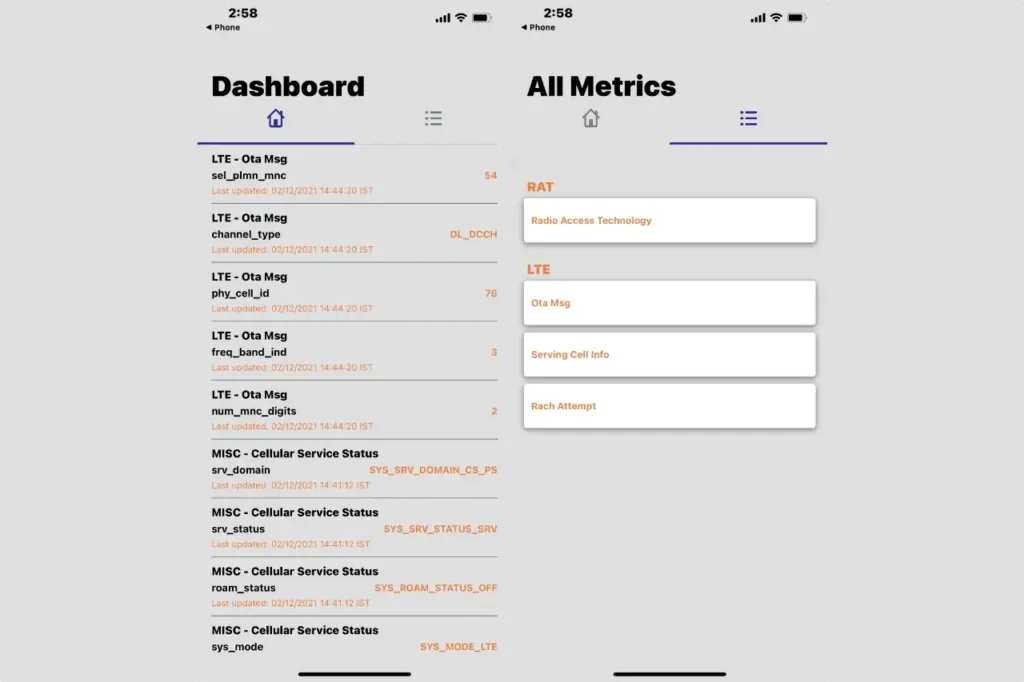
Field Test Mode does not scan the iPhone for spyware, reveal who is monitoring it, or prove that calls are being tapped. It is primarily a cellular-network diagnostic interface.
Legacy Android Codes Mistaken for Phone-Hacking Codes
Several older Android codes continue to appear in articles, videos, and social posts. They may work only on certain manufacturers, old Android versions, engineering builds, or service menus.
Keeping them here helps explain what they were intended to do and what they cannot prove.
*#*#197328640#*#* Legacy Android Service Mode Code
This code has historically been associated with service or engineering menus on some older Android and Samsung phones.
A working menu may display technical network information such as:
- Cell information
- Radio details
- Mobile-network identifiers
- Serving-network data
It is not a universal NetMonitor hacking scanner.
Do not assume that a cell ID, local area code, or network identifier proves that an unknown person is connected to your phone. Your phone must connect to cellular infrastructure to provide mobile service.
Avoid entering cell information into random “tracking” or “NetMonitor” websites. Such sites may collect your information, show misleading results, or push unsafe downloads.
*#*#1472365#*#* Legacy GPS Test Code
This code has been associated with GPS testing on certain older Android devices.
It does not:
- Track a stolen phone by itself
- Identify who is monitoring your location
- Reveal a hacker’s location
- Confirm that spyware is installed
Use Google’s Find Hub or Apple’s Find My service for your own lost device. Review location permissions and account sharing to investigate unauthorized tracking.
*#*#34971539#*#* Camera Firmware Information Code
This code has been reported to display camera-firmware information on some older Android phones.
Firmware information does not prove that someone is spying through your camera. To investigate camera access, review app permissions and watch for Android or iPhone privacy indicators.
Do not select any firmware-update option in a hidden service menu unless the device manufacturer specifically instructs you to do so.
*#*#232338#*#* Wi-Fi MAC Address Code
This code may display the Wi-Fi MAC address on some Android devices.
A MAC address identifies a network interface. Viewing it does not tell you whether your phone is hacked.
Modern phones may use randomized MAC addresses for Wi-Fi privacy. A different address shown for a network can therefore be normal rather than evidence of spoofing.
Destructive Reset Codes That Do Not Check for Hacking
Codes such as *#*#7780#*#* and *2767*3855# are widely described online as factory-reset or hard-reset commands for certain older Android devices.
They are not codes to check if a phone is hacked.
Danger: A destructive code may erase apps, accounts, settings, photos, messages, files, and other personal data. Some devices may execute a command without giving you enough time to cancel it.
Do not enter these codes merely to test your phone.
Use the manufacturer’s current reset process through the Settings app instead. Google’s official Android factory-reset guidance explains that a factory reset erases data from the phone.
Before resetting:
- Back up irreplaceable data
- Save important evidence
- Confirm your Google or Apple Account credentials
- Remove suspicious account sessions
- Change compromised passwords from a clean device
- Contact your carrier and bank when necessary
- Make sure you can complete device-activation checks afterward
A factory reset should normally be a final recovery step, not the first reaction to an unusual dial-code result.
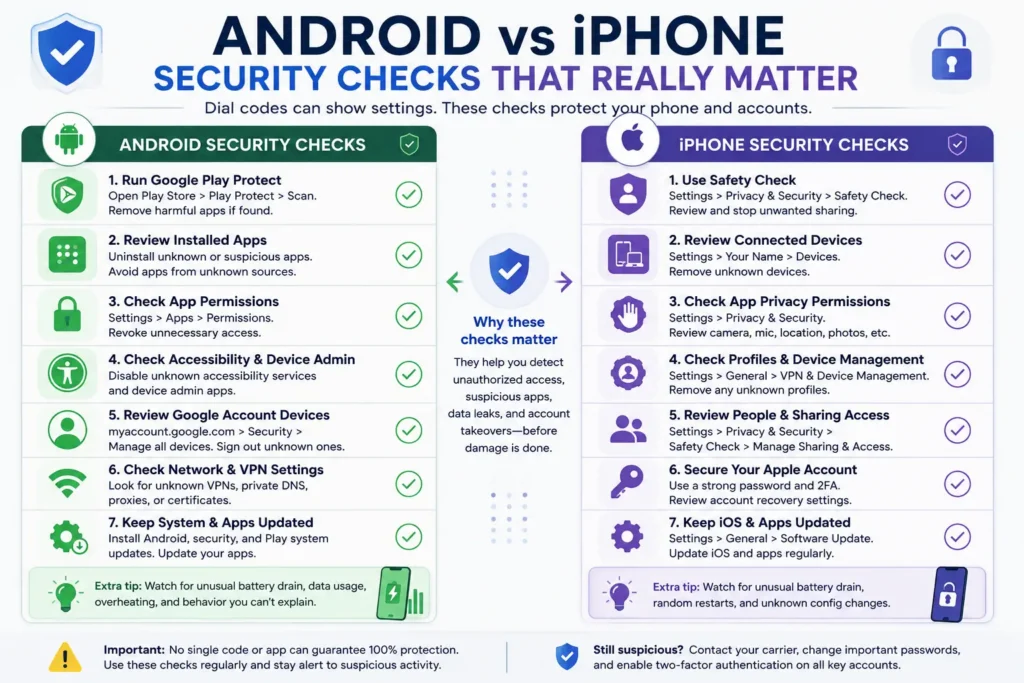
How to Check an Android Phone for Actual Hacking
Call-forwarding codes cover only one narrow part of phone security. Use the following checks when you suspect an Android phone is hacked.
Run Google Play Protect to Check for Harmful Apps
Open:
Google Play Store → Profile picture → Play Protect → Scan
Google says Play Protect checks apps and devices for harmful behavior. It can warn about, disable, or remove some potentially harmful apps.
Keep Scan apps with Play Protect enabled. Also enable improved harmful-app detection when appropriate.
Play Protect is useful, but no scanner can guarantee detection of every threat.
Review Unknown Android Apps
Open your phone’s app list and look for:
- Apps you do not remember installing
- Apps with blank or misleading names
- Remote-access applications
- Screen-sharing tools
- Apps installed outside Google Play
- Modified versions of popular apps
- Apps using unusual amounts of data or battery
Do not delete an unfamiliar system app solely because its name looks technical. Search the exact package or contact the manufacturer before removing it.
Check Android App Permissions
Review which apps can access:
- Camera
- Microphone
- Location
- Contacts
- Call logs
- SMS
- Photos and files
- Notifications
- Nearby devices
A flashlight, calculator, or simple game should not normally need access to your calls, SMS, microphone, accessibility controls, and location at the same time.
Revoke permissions that are unnecessary for the app’s stated purpose.
Check Accessibility and Device-Administrator Access
Some malicious apps misuse Android accessibility services to read screens, interact with other apps, approve actions, or capture sensitive information.
Check:
Settings → Accessibility → Installed apps or Downloaded apps
Also review:
Settings → Security → Device admin apps
Menu names vary by manufacturer and Android version. Disable suspicious access before attempting to uninstall the app.
Review VPN and Network Settings
A VPN configuration may be legitimate if you installed it yourself for work, privacy, school, or travel.
Investigate:
- VPN profiles you do not recognize
- Unknown private DNS settings
- Certificates installed without your knowledge
- Proxy settings you did not configure
- Remote-management applications
A VPN can encrypt traffic between your device and the VPN provider, but it does not automatically remove spyware already installed on the phone. Read what a VPN can and cannot protect before treating it as an antivirus replacement.
Review Devices Signed Into Your Google Account
Go to:
Google Account → Security & sign-in → Your devices → Manage all devices
Google allows you to review devices and sessions with account access. Sign out of devices or sessions you do not recognize.
A location shown in account activity may be approximate, so examine the device, browser, date, and session details before concluding that access was malicious.
Install Android and App Updates
Install available:
- Android system updates
- Security updates
- Google Play system updates
- App updates
- Manufacturer firmware updates
Updates repair known vulnerabilities and compatibility problems. Download them through your phone’s official Settings app or app store.
How to Check an iPhone for Actual Hacking or Tapping
An iPhone dial code cannot provide a complete security assessment. Use Apple’s privacy and account controls to review access.
Use Apple Safety Check on iPhone
On an iPhone with iOS 16 or later, open:
Settings → Privacy & Security → Safety Check
Apple says Safety Check can help you:
- Review who has access to your information
- Stop sharing information
- Review devices connected to your Apple Account
- Reset app privacy permissions
- Change your iPhone passcode
- Change your Apple Account password
Use Manage Sharing & Access when you want to review access carefully. Use Emergency Reset when you need to stop sharing quickly and understand the possible effects.
Review Devices Connected to Your Apple Account
Open:
Settings → Your name
Scroll through the connected devices. Select any device you do not recognize and review its details.
Remove an unknown device only after checking whether it is an old iPhone, iPad, Mac, browser session, repair device, or family device that you previously authorized.
Check iPhone Configuration Profiles
Open:
Settings → General → VPN & Device Management
A configuration or mobile-device-management profile can control certain settings, certificates, VPN connections, or organizational access.
Profiles may be legitimate on work, school, or managed devices. An unknown profile on a personal iPhone should be investigated.
Apple provides instructions to review and remove configuration profiles.
Review iPhone Privacy Permissions
Open:
Settings → Privacy & Security
Review access to:
- Location Services
- Tracking
- Contacts
- Calendars
- Photos
- Bluetooth
- Microphone
- Camera
- Local Network
- Motion and Fitness
An orange indicator shows that an app is using the microphone, while a green indicator shows camera use or camera-and-microphone use. Open Control Center to see which app recently used the sensor.
Update iOS and Installed Apps
Install the latest compatible iOS update and update apps through the App Store.
An update does not prove that your phone was hacked, but it closes known vulnerabilities and fixes software problems that may resemble security issues.
How to Check for SIM-Swap or Port-Out Fraud in the US
Dial codes cannot detect SIM swapping or phone-number porting fraud.
Contact your wireless carrier immediately when:
- Your phone suddenly loses cellular service
- You receive an unexpected SIM or eSIM activation notice
- Your carrier password or account PIN stops working
- Calls and text messages no longer reach your phone
- You receive an unauthorized number-transfer notification
- Password-reset messages appear for accounts you did not access
- Your email, banking, or social accounts become unavailable
Ask the carrier whether anyone recently:
- Activated another SIM or eSIM
- Requested a number transfer
- Changed your account PIN
- Added an authorized user
- Replaced your device
- Modified call-forwarding settings
Then secure your email, banking, Google, Apple, and social-media accounts from another trusted device.
What to Do If You Think Your Phone Is Hacked
Do not immediately erase the phone and destroy potentially useful evidence.
Follow this recovery order:
- Disconnect from suspicious Wi-Fi and stop sensitive transactions.
- Take screenshots of unusual forwarding results, alerts, apps, and account sessions.
- Contact your wireless carrier about unauthorized forwarding, SIM changes, or service loss.
- Contact your bank immediately if money, one-time passcodes, or payment accounts may be at risk.
- Change important passwords from another trusted device.
- Sign out unknown Google, Apple, email, social-media, and messaging sessions.
- Enable two-factor authentication or passkeys.
- Remove suspicious apps, permissions, profiles, and linked devices.
- Install official system and app updates.
- Run an appropriate security scan.
- Back up essential personal files without restoring suspicious apps.
- Factory-reset the phone only when safer checks do not resolve the problem.
If your WhatsApp messages or linked devices also look suspicious, follow the steps in our guide on securing a hacked WhatsApp account.
How to Report Phone Hacking, SIM Fraud, or Scams in the US
Contact Your Wireless Carrier
Contact your carrier first when the problem involves:
- Call forwarding
- SIM or eSIM changes
- Loss of cellular service
- Unauthorized account changes
- Number porting
- Voicemail access
Ask the carrier to secure the account, remove unauthorized access, and add a stronger account PIN or port-out lock when available.
Report Cell Phone Fraud to the FCC
The Federal Communications Commission provides information about cell phone fraud, number porting, spoofing, unwanted calls, and telecommunications complaints.
File an FCC complaint when the issue involves your wireless service, number porting, spoofed calls, unwanted calls, or carrier-related fraud.
Report Scams to the FTC
Report fraudulent calls, messages, impersonation scams, account-takeover attempts, and deceptive businesses through the Federal Trade Commission’s ReportFraud service.
The FTC accepts reports even when you recognized the scam before losing money.
Protect Compromised Accounts
When an attacker gained access to your email or social-media account:
- Change the password from a trusted device.
- Sign out unknown devices and sessions.
- Review recovery email addresses and phone numbers.
- Enable two-factor authentication or a passkey.
- Remove unauthorized applications.
- Check sent messages, forwarding rules, and account filters.
- Warn contacts when the attacker sent messages from your account.
Never share a verification code with someone who contacts you unexpectedly. A legitimate support representative should not ask you to read them a one-time login code intended for your account.
How to Protect Your Phone From Hacking and Tapping
Use simple habits consistently rather than depending on a secret dial code.
- Download apps from Google Play or the Apple App Store.
- Avoid APK files and modified apps from unknown sources.
- Use a strong screen-lock passcode.
- Use different passwords for email, banking, and social media.
- Store passwords in a reputable password manager.
- Enable two-factor authentication or passkeys.
- Never share a one-time passcode, verification code, or account-recovery code.
- Do not dial forwarding commands sent by unknown people.
- Review app permissions regularly.
- Check linked devices and account sessions.
- Install phone and app updates.
- Avoid giving an unlocked phone to strangers.
- Keep Google Play Protect enabled on Android.
- Review Safety Check and connected devices on iPhone.
- Contact your carrier when cellular service changes unexpectedly.
- Use a VPN for appropriate network privacy, not as a replacement for malware detection.
One symptom alone rarely proves hacking. For example, there are many ordinary reasons why a phone becomes hot, including charging, gaming, sunlight, background activity, software bugs, and battery problems.
Look for a pattern of unexplained changes instead of treating every technical problem as an attack.
FAQs About Codes to Check If Phone Is Hacked
What is the best code to check if phone is hacked?
There is no single best code that can confirm phone hacking. Use *#21#, *#61#, *#62#, and *#67# to check supported call-forwarding conditions. Then use Android, iPhone, carrier, and account-security checks to investigate malware, spyware, SIM swapping, and unauthorized access.
What is the best code to check if a phone is tapped?
No dial code can conclusively prove that a phone is tapped. *#21# can check unconditional call forwarding, while *#61#, *#62#, and *#67# can check conditional forwarding. These codes do not detect call recording, spyware, lawful interception, or microphone access.
Does *#21# tell you if your phone is hacked?
No. *#21# checks unconditional call-forwarding status on supported networks. Unexpected forwarding may require investigation, but an enabled setting does not automatically mean that your phone is hacked.
What happens when I dial *#62#?
*#62# may show where calls are forwarded when your phone is switched off, unreachable, or outside network coverage. The displayed number is often associated with carrier voicemail. Confirm an unfamiliar number with your mobile provider.
What does *#61# do?
*#61# checks forwarding when you do not answer an incoming call. On some networks, it may also show the forwarding destination and delay. It does not show whether someone is reading your messages.
What does *#67# do?
*#67# checks whether calls are forwarded when your line is busy. It does not detect spyware, call recording, or account hacking.
Does ##002# remove a hacker?
No. ##002# attempts to deactivate supported call-forwarding services. It does not remove malware, close hacked account sessions, stop SIM swapping, or uninstall spyware. It may also affect legitimate voicemail.
Why does a call-forwarding code show an unknown number?
The number may belong to your carrier’s voicemail platform, a service you previously configured, or an unauthorized destination. Take a screenshot and ask your carrier to identify it before disabling services or accusing anyone.
Can a code detect spyware on Android or iPhone?
No consumer dial code performs a reliable spyware scan. On Android, check Play Protect, installed apps, accessibility access, device-administrator access, permissions, and Google Account sessions. On iPhone, use Safety Check, review connected devices, inspect profiles, and check privacy permissions.
Can a code detect a SIM swap?
No. Contact your wireless carrier if your phone suddenly loses service or you receive an unexpected SIM, eSIM, or porting notification. Secure your email and banking accounts immediately because a SIM swap can affect verification codes and account recovery.
Does *#06# show if a phone is hacked?
No. *#06# displays the phone’s IMEI number. The IMEI helps identify, verify, report, block, or recover a device, but it does not scan for hacking.
Why do I see “invalid MMI code” or “connection problem”?
Your carrier, device, SIM, or current network may not support the code. Try checking call forwarding through the Phone app’s settings or contact your carrier. An error does not mean that your phone is hacked.
Can someone forward my text messages using these codes?
Standard call-forwarding codes primarily control voice-call forwarding. They do not normally forward SMS conversations, encrypted app messages, photos, files, or emails. Those require separate account access, device access, malicious software, or another attack method.
Conclusion: Use a Dial Code as a Check, Not Proof
A code to check if phone is hacked can help you inspect call forwarding, device identity, or technical network information. It cannot provide a complete answer about spyware, SIM swapping, unauthorized accounts, location sharing, camera access, or phone tapping.
Use the relevant status codes, interpret the number carefully, and verify unexpected forwarding with your wireless carrier. Then review your Android or iPhone security settings, signed-in devices, apps, permissions, profiles, and online accounts.
The safest conclusion is simple: dial codes can reveal settings, but a setting is not proof of hacking.
